 BEARCO SUITE
Conduit Wallet
A small buying wallet lives in this browser. Fund it with XRP, then buy any token once or on a schedule; the tokens stay in this wallet, or land in any wallet you name. Bearco's server only keeps the schedule and wakes this browser to sign each buy. It holds no keys and can't change an amount, a token or a destination.
Set up for your device - what each one needs for buys to run with the screen off
iPhone / iPad - Safari. iOS only lets a website receive notifications once it is on your Home Screen, and background signing rides on those notifications.
- Open bearcosuite.com/wallet in Safari (not inside the X or Telegram browser).
- Tap Share (the square with the arrow) → Add to Home Screen → Add.
- Open Bearco from the Home Screen icon from now on. Sign in with your passkey (Face ID / Touch ID) and unlock or create the wallet there.
- When it asks, tap Allow notifications. The Background signing pill below should read on; press Test now to see a receipt.
- Keep Low Power Mode off while a long schedule runs - iOS can delay wake-ups under it. A Focus mode that silences Safari also hides the receipts (buys still sign).
Your passkey syncs through iCloud Keychain, but the wallet itself lives only in this browser: to use the same wallet on another device, Download backup here and Restore backup file there.
Android - Chrome. Works straight from the browser, but Android likes to put Chrome to sleep while the screen is off, which makes scheduled buys late or missed. These settings let the wake-ups through:
- Tap Allow when Chrome asks about notifications. If it never asked: tap the tune icon left of the address → Permissions → Notifications → Allow.
- Chrome battery: Unrestricted - Android Settings → Apps → Chrome → Battery → Unrestricted.
- Samsung: Settings → Battery → Background usage limits → take Chrome out of Sleeping apps and Deep sleeping apps, and turn off Put unused apps to sleep.
- Battery saver off while an auto-buy schedule is running.
- Optional: Chrome menu → Add to Home screen for a one-tap icon.
Then press Test now under Background signing: a "Bearco DCA · test" notification means it's ready. Your passkey is kept by Google Password Manager (fingerprint or screen lock).
Windows - Chrome, Edge or Firefox. The easiest setup: sign in with your passkey (Windows Hello PIN or fingerprint), create or unlock the wallet, click Allow on the notification prompt. That's it.
- Buys sign while the browser is running, even with every Bearco tab closed. To keep going after you close the last browser window: Chrome menu → Settings → System → Continue running background apps when Google Chrome is closed (Edge has the same switch).
- Windows Do not disturb / Focus assist hides the receipts but does not stop the signing.
- Sleep and hibernate do stop it - a sleeping PC can't be woken by a notification. For a long schedule, keep the PC awake, or run it from your phone as well.
- Incognito windows can't receive notifications, so background signing can't run there; use a normal window.
The wallet lives in this browser profile only. Switching browsers or PCs: Download backup here, Restore backup file there, same passphrase.
Mac - Safari 17+, Chrome or Firefox. Sign in with your passkey (Touch ID / iCloud Keychain), create or unlock the wallet, click Allow on the notification prompt.
- If no prompt appears or receipts never show: System Settings → Notifications → your browser → Allow notifications.
- Buys sign while the browser is running, even with every Bearco tab closed. Quitting the browser (⌘Q) pauses them until it's open again; closing the window is fine in Chrome if Continue running background apps is on in Settings → System.
- A sleeping Mac can't be woken by a notification. For a long schedule, keep it awake (Energy settings) or run the schedule from your phone too.
- Safari Private windows and Chrome Incognito can't receive notifications - use a normal window.
The wallet lives in this browser only. To use it in another browser or on your iPhone: Download backup here, Restore backup file there, same passphrase.
1 · Passkey
Fingerprint, face or PIN — no email, no password. Same passkey as Combine; your wallet and auto-buys are kept under it.0% commission, no Bearco fee. You pay only the ledger's network fee. Pool fees go to LPs.
2 · Conduit wallet
Keys are made here, encrypted with your passphrase, and never leave this browser.No conduit wallet in this browser yet.
Choose a passphrase. It encrypts the wallet's secret on this device. If you forget it, only your written-down seed gets the wallet back.
Only this browser keeps this wallet. Clear its storage, use a private/incognito window, or lose the device, and the wallet is gone with any XRP in it. Bearco cannot recover it.
Do both: write this seed down and keep it offline (anyone with it controls the wallet), and download the encrypted backup - the same file your browser keeps, still locked with your passphrase. You will not see the seed again unless you unlock and ask.
Send
Liquidate wallet
Sells every token below back to XRP through its pool, right now, at market. Untick anything to keep. Real transactions - they can't be undone.
🧹 Clean-Up
Closes empty trust lines and sells small leftovers so their lines can close too (0.2 XRP reserve back each). Anything under the limit that won't sell is sent back to its issuer. Tick or untick any token yourself - your picks stay put when you move the slider.
SuperSync → Xaman
Your Xaman wallet needs a trust line for every token before it can receive it. This finds the ones it's missing and sends them to Xaman as sign requests, up to 8 per request (one atomic batch). You approve each in Xaman; Bearco never sees that wallet's keys. Each new trust line holds 0.2 XRP in your Xaman wallet (back when you remove it).
Wallet details
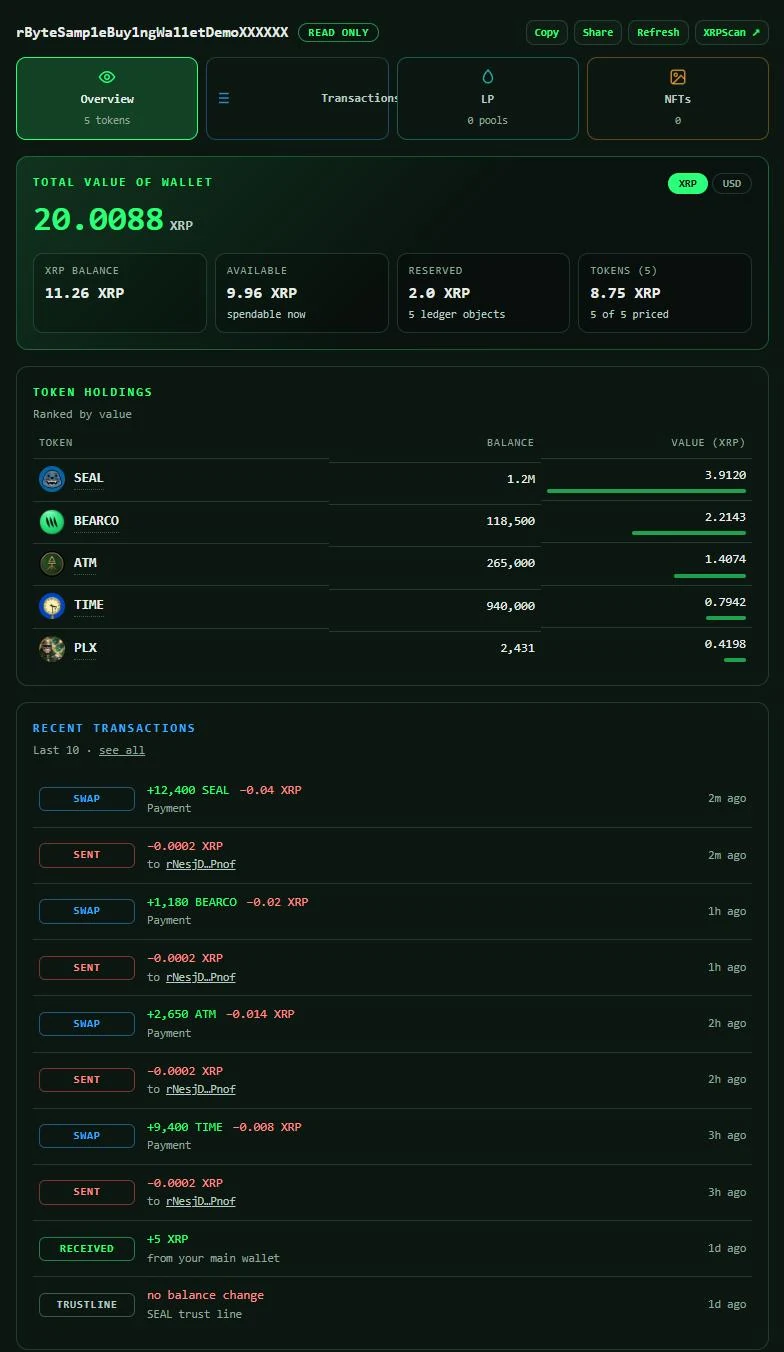
Everything the ledger knows about your buying wallet: tokens and total value, transactions, LP positions, NFTs. Open in ScopeAuto-buy · Dollar Cost Average
Dollar cost average buying over time: instead of one big buy at one price, your XRP goes in as a run of small buys on a schedule, so you land near the average price without timing the market.
What's DCA?
Dollar-cost averaging: instead of buying all at once, you split it into small buys on a schedule. Some land when the price is high, some when it's low, so you end up near the average price and don't have to time the market. Auto-buy does it for you: pick the total, how long, and how many buys. Auto-sell does the same in reverse, easing out of a token instead of dumping it at one price.
Start one from any token: press Buy (or Sell) and pick Auto-buy (DCA).
Limit orders
Orders this buying wallet has on the XRP Ledger order book, and the ones that filled. Place one from any token: Buy or Sell → Limit price, or click a price in a token page's order book. While this page is open you get an alert the moment an order fills; with it closed, turn on Listen live above for notifications.
Open orders
Filled orders
How it works. Each buy is one XRPL Payment signed by your buying wallet: spend up to the XRP you chose, route through the token's AMM pool, and refuse to fill below your price floor. Bearco's server keeps the schedule and, when a buy is due, wakes this browser with a notification so the wallet signs it here; the server never signs anything. A skipped buy keeps its slot for later. Pause or cancel any time.
What Bearco never has. Your seed, your passphrase, or the ability to move funds anywhere other than the destination you chose.
Reserve. The ledger keeps 1 XRP in the wallet while it exists and 0.2 XRP per token trust line (back when you remove the line). XRP held for a running auto-buy is yours and shows as "held", not as a fee. Fees: 0% commission and no Bearco fee - only the ledger's network fee and the pool's own fee, which goes to its liquidity providers.
What you'll see
A sample buying wallet: every token it holds and the wallet's total value, its transactions, LP positions and NFTs. Yours looks like this the moment it's funded.